


Lorem ipsum dolor sit amet, dolor siterim consectetur adipiscing elit. Phasellus duio faucibus est sed facilisis viverra. Umero praesent nec accumsan nibh, eu grav da metus.
This is a demo store for testing purposes — no orders shall be fulfilled. Dismiss
 Jamaica
Jamaica
Jamaica
2 min read
Shipping setup is one of the most important parts of selling successfully.
Correct shipping settings ensure customers see the right delivery options, accurate fees, and realistic delivery times.
This guide walks you through local and international shipping setup using the Dokan Multivendor seller dashboard.
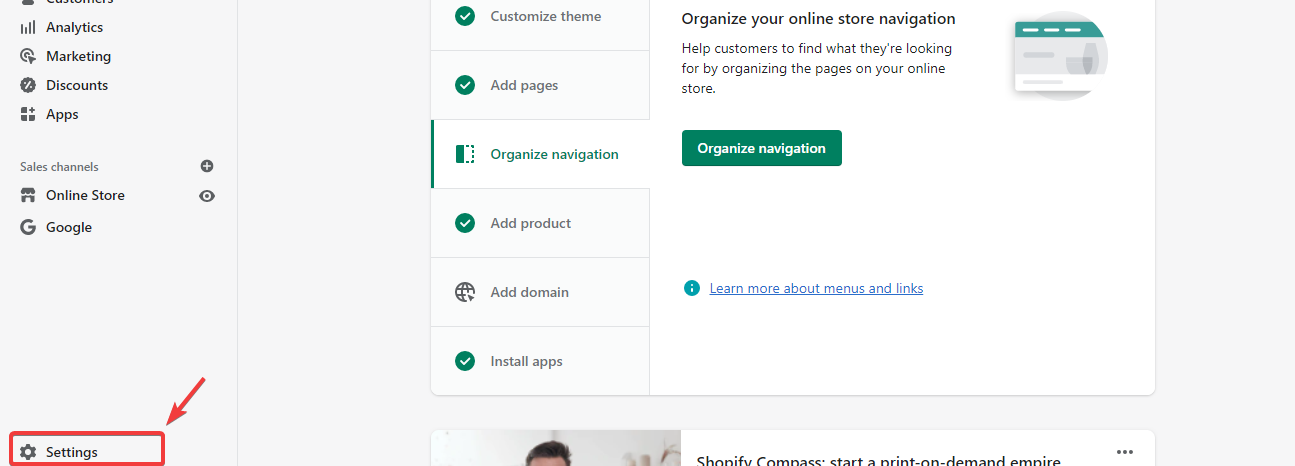
Proper shipping configuration helps:
📌 Incorrect shipping settings are a top cause of seller issues.
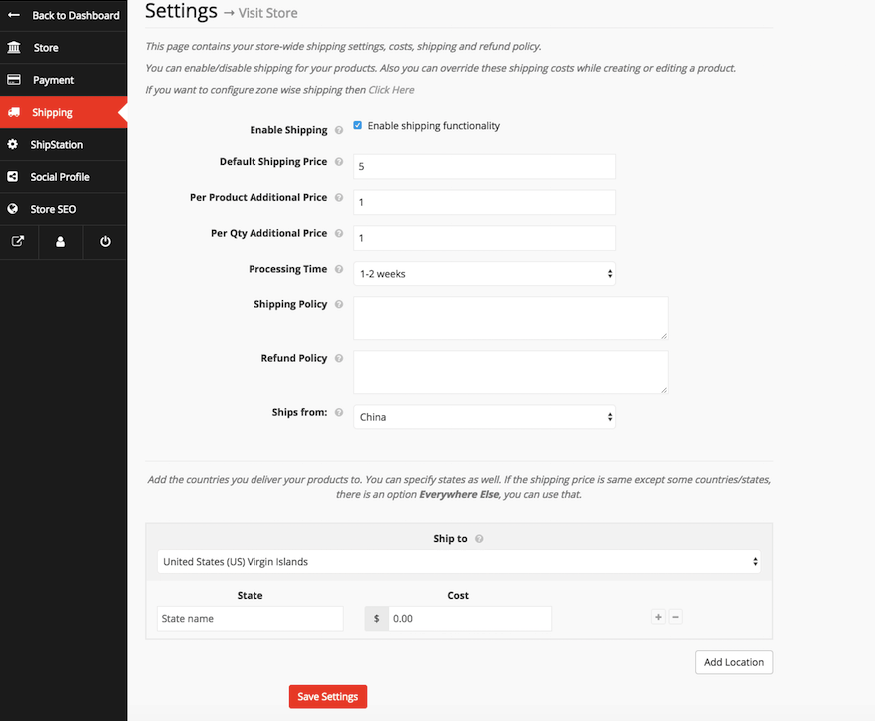
Make sure shipping is:
🚚 If shipping is disabled, customers won’t see delivery options.


📝 Example:
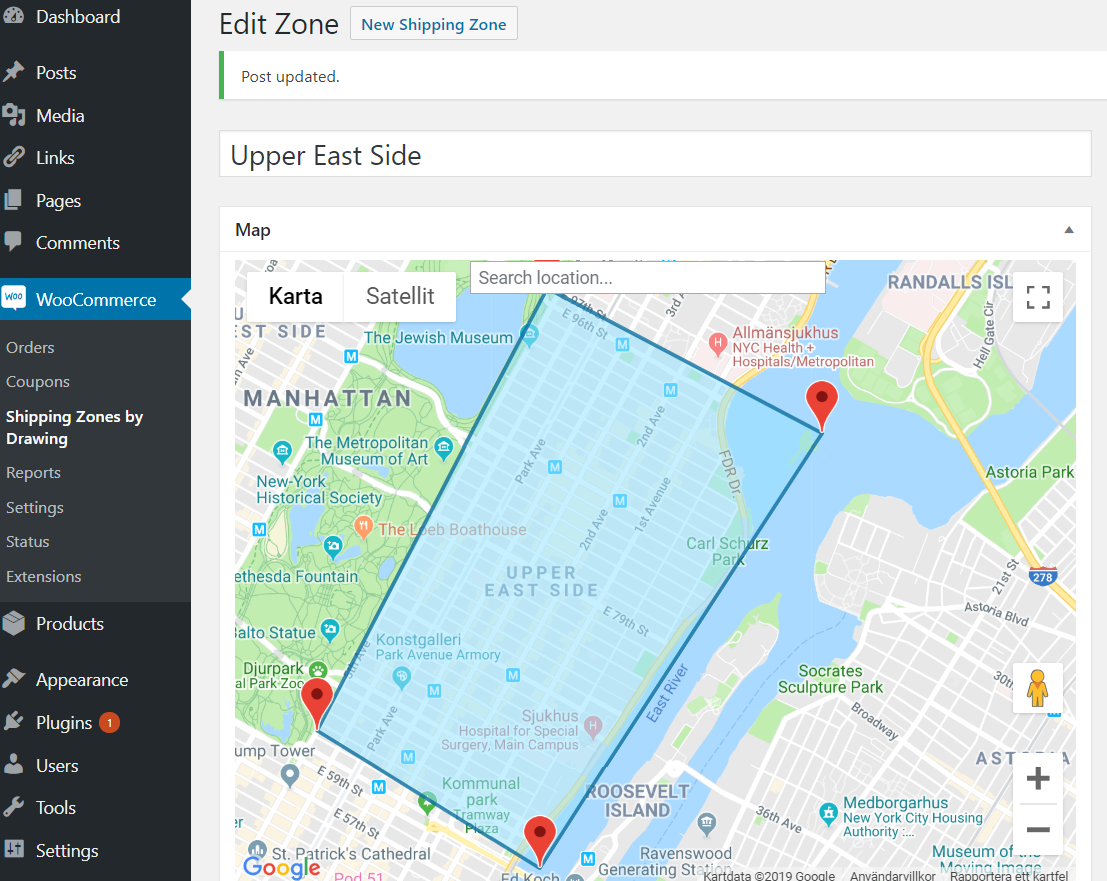

Shipping zones let you:
📍 Always match zones with your actual delivery capability.
If you offer pickup:
🏪 Pickup reduces delivery costs and disputes.


If you choose to ship internationally:
🌍 Only enable countries you can realistically ship to.
Always clarify:
📌 This prevents international disputes.
After configuring:
✅ Always test before selling.


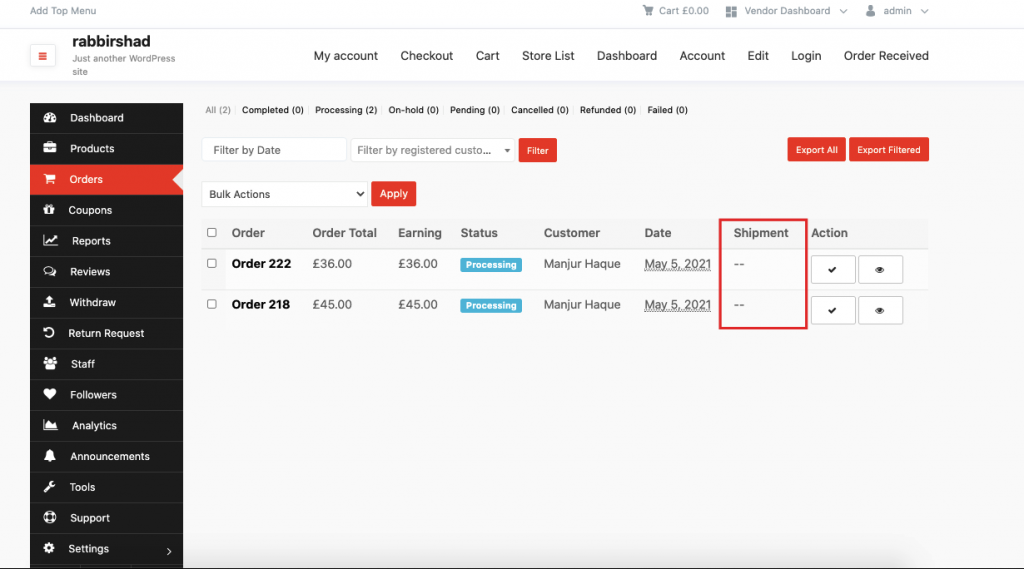
Customers will see:
🛒 Clear options improve conversions.
❌ Underpricing delivery fees
❌ Offering shipping to unsupported areas
❌ Forgetting to include handling time
❌ Enabling international shipping without preparation
⚠️ Always start simple and expand later.
✔ Start with flat-rate local shipping
✔ Add courier options once experienced
✔ Be honest with delivery times
✔ Update shipping rates if costs change
Shipping settings directly affect your profits and customer satisfaction. Set them carefully, test them often, and update them as your business grows 🚚



This chat uses automated responses for general guidance. For binding terms, please refer to our official policies.
Start A Conversation
Click here to chat with me!
Search our website now
Latest Products
Latest Posts
Tips how to choise a perfect watch foractive guys
Lorem ipsum dolor sit amet, dolor siterim consectetur adipiscing elit. Phasellus duio faucibus est sed facilisis viverra. Umero praesent nec accumsan nibh, eu grav da metus.
Harman Kadon Onyx Studio Mini, Reviews & Experiences
Lorem ipsum dolor sit amet, dolor siterim consectetur adipiscing elit. Phasellus duio faucibus est sed facilisis viverra. Umero praesent nec accumsan nibh, eu grav da metus.
Lorem ipsum dolor sit amet, dolor siterim consectetur adipiscing elit. Phasellus duio faucibus est sed facilisis viverra. Umero praesent nec accumsan nibh, eu grav da metus.
Lorem ipsum dolor sit amet, dolor siterim consectetur adipiscing elit. Phasellus duio faucibus est sed facilisis viverra. Umero praesent nec accumsan nibh, eu grav da metus.
Lorem ipsum dolor sit amet, dolor siterim consectetur adipiscing elit. Phasellus duio faucibus est sed facilisis viverra. Umero praesent nec accumsan nibh, eu grav da metus.

Subscribe to the Martfury mailing list to receive updates on new arrivals, special offers and our promotions.